• Skip to main content
  • Skip to main navigation
Baylor University Baylor University
Drupal Content Management System (CMS)
  • CMS Migration
    • Project Scope
    • Project Context
    • Project Leadership & Team
    • Accessibility Statement
    • URL Redirects
  • Consulting and Design
    • Creating and Migrating Websites
    • Key Terms
    • Project Roles
    • Request a Drupal Site
    • Google Analytics
    • Web Consultants
  • Developer Docs
  • Documentation
    • Accessibility Resources
      • About Web Accessibility
      • Tips for Creating Accessible Content
    • Introduction to Drupal
      • Logging In
      • Platform Updates
      • Workflow States
    • Events
      • Adding an Event
      • Advanced Event Management Tools
      • Event Categories
      • Event Import
      • Event Subscriptions
      • Managing Existing Events
    • Mass Email (Emma)
    • Media & Styles
      • Multimedia (Audio & Video)
      • Baylor Icons
      • Documents
      • Font Awesome Icons
      • Font Styles
      • Image Sizing
      • Recommended Image Sizes
      • Standards and Practices
    • Menus, Navigation, and Redirects
      • Add Pages to a Menu
      • Child Page List Details
      • External Links
      • Featured Navigation Links
      • Place a Child Page List Block
      • Reordering the Menu
      • URLs and Redirects
    • News
      • Adding a News Story
      • Advanced News Story Options
      • Managing Existing News Stories
      • News Categories
      • News Importing
      • News Subscriptions
    • Pages
      • Basic Pages
      • Landing Pages
    • Drupal Forms
      • E-Commerce Forms
      • Download Submissions
      • Submitted Data
      • View Submissions
    • Advanced Features
      • People
      • Asides
      • FAQ Collection Module
    • Users & Roles
      • Drupal User Roles
  • News & Updates
  • Training
  • Admin & Role Management
Baylor BU Drupal Content Management System (CMS) Documentation Media & Styles Multimedia (Audio & Video) Upload Audio or Video File
  • Accessibility Resources
  • Introduction to Drupal
  • Events
  • Mass Email (Emma)
  • Media & Styles
    • Multimedia (Audio & Video)
      • Add Audio or Video File to Drupal
      • Upload Audio or Video File
      • Claim Media
      • Editing your Media
      • Embed & Format Media
      • Hero Video Specifications
      • YouTube and Vimeo Embedding
    • Baylor Icons
    • Documents
    • Font Awesome Icons
    • Font Styles
    • Image Sizing
    • Recommended Image Sizes
    • Standards and Practices
  • Menus, Navigation, and Redirects
  • News
  • Pages
  • Drupal Forms
  • Advanced Features
  • Users & Roles

Upload Audio or Video File

You can upload your audio or video files to Baylor’s fileshare (like a shared “Dropbox” folder for Baylor—it’s where Drupal looks for your media.)

Important: If you are not on campus, you must connect to the Baylor VPN first so your computer can “see” the fileshare.

Step 1: Check Your File Type

  • You can upload these kinds of files:
    .mov, .mp3, .m4v, .wav, .mp4, .wmv, .mpg
  • If your file isn’t one of these, you’ll need to convert it before uploading.


Step 2: Upload the File

Choose your instructions based on the kind of computer you’re using:

For Mac users:

  • Open Finder.
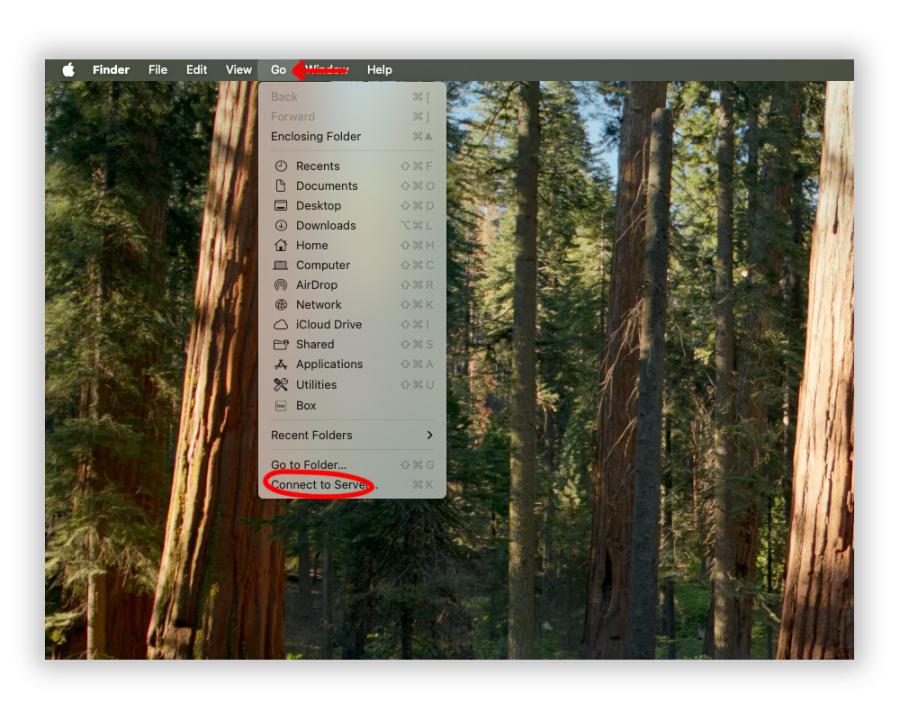
  • At the very top, click Go → Connect to Server.


Mac User - Menu - Connect to Server

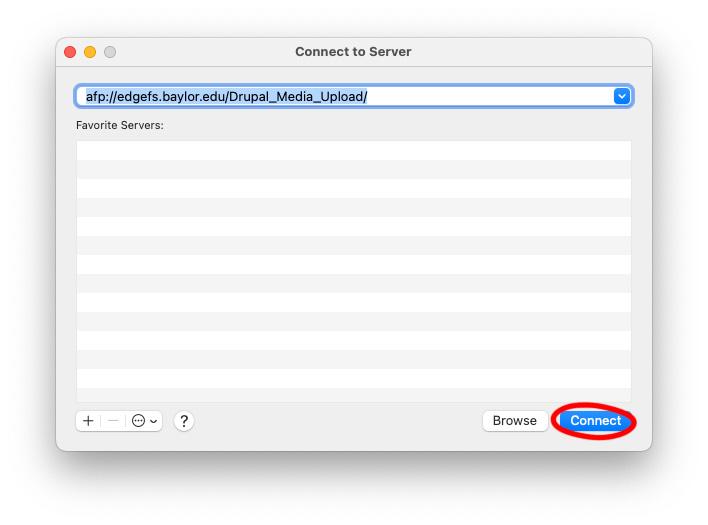
When the Connect to Server window pops up, paste in this address: 
afp://edgefs.baylor.edu/Drupal_Media_Upload/

  • Press Connect.
Mac User - Window - Connect to Server.jpg

Upload your file to the server by dragging it into the finder window.
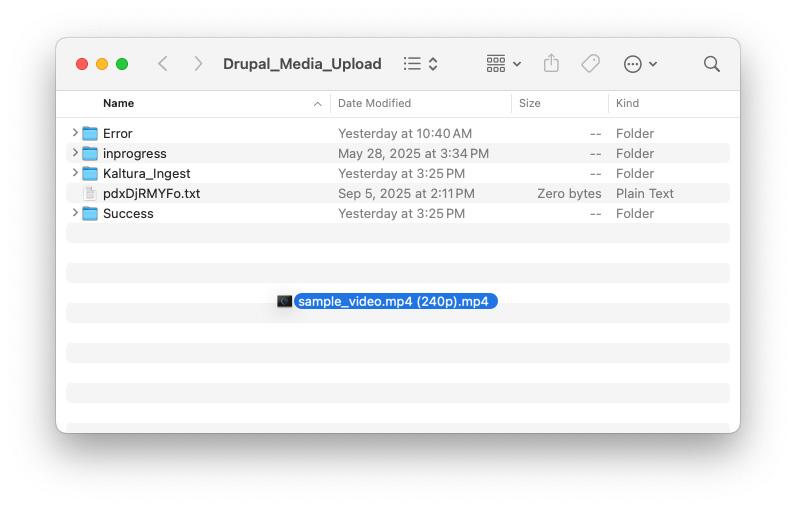
Mac User - Add video to server

For Windows users:

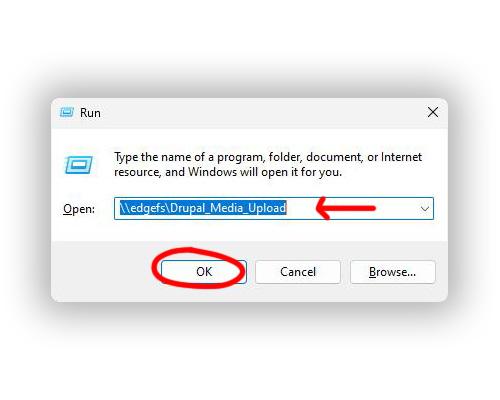
  • On your keyboard, press Windows Key + R to open the “Run” box.

  • Paste in this address:

    \\edgefs\Drupal_Media_Upload\

  • Press OK.

Windows User - Run Window

Upload your file to the server by dragging it into the server window.
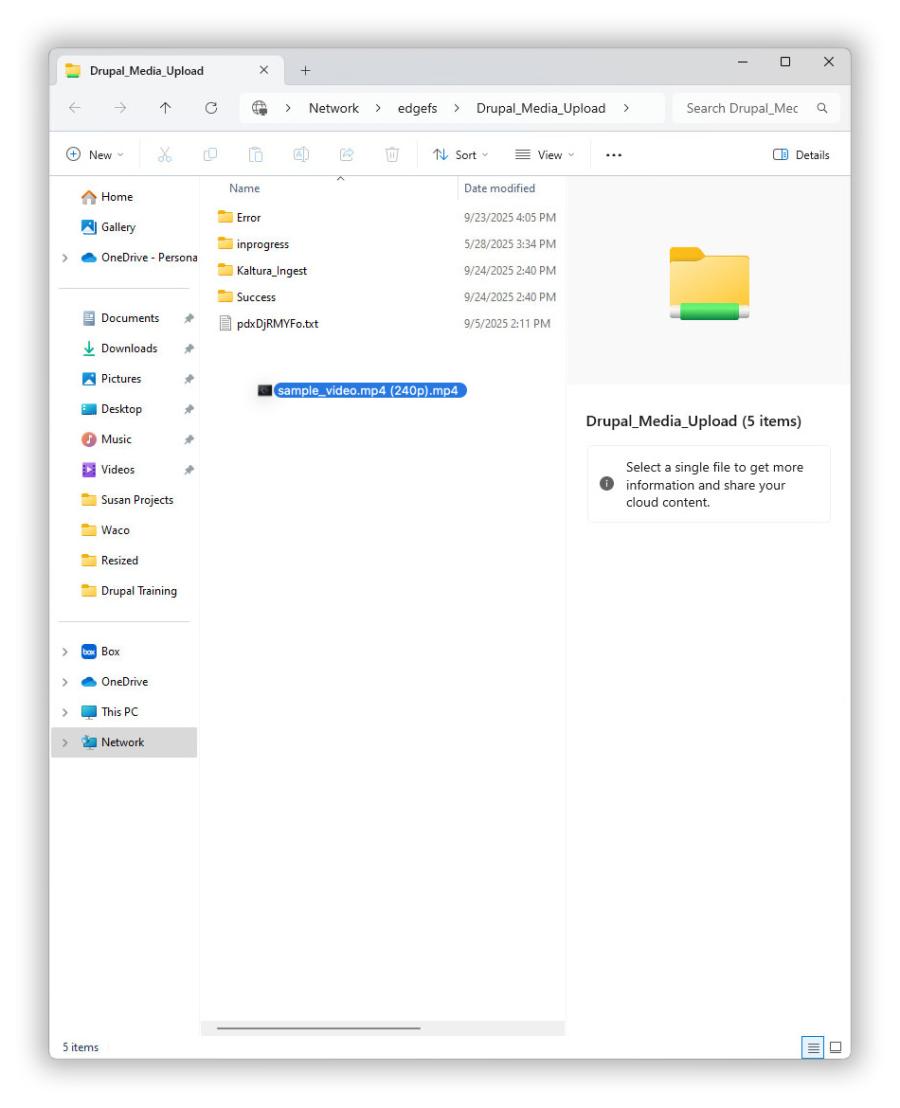
Windows User - Add video to server

For other systems

Use this address (your computer may ask if you want AFP or SMB—both work):

 //edgefs.baylor.edu/Drupal_Media_Upload/ 

Step 3: Wait for Processing

After you upload your file, give Drupal about 30 minutes to process it.
Once it’s ready, you’ll be able to “claim” it (pick it from the list in Drupal and add it to your page).

Troubleshooting

  • If you can’t access the fileshare, your Bear ID may not have permission. Contact your Web Consultant to get it added.
  • Remember: You must be connected to the Baylor network, on-campus Wi-Fi or Baylor's VPN if you are off-campus.

Drupal Content Management System (CMS)

ITS and Marketing & Communications

Baylor's content management system is a tool for academic and administrative units to create and manage websites.

andrew_maddox@baylor.edu
Baylor BU Drupal Content Management System (CMS) Documentation Media & Styles Multimedia (Audio & Video) Upload Audio or Video File
  • CMS Migration
    Back
    • Project Scope
    • Project Context
    • Project Leadership & Team
    • Accessibility Statement
    • URL Redirects
  • Consulting and Design
    Back
    • Creating and Migrating Websites
    • Key Terms
    • Project Roles
    • Request a Drupal Site
    • Google Analytics
    • Web Consultants
  • Developer Docs
  • Documentation
    Back
    • Accessibility Resources
      Back
      • About Web Accessibility
      • Tips for Creating Accessible Content
    • Introduction to Drupal
      Back
      • Logging In
      • Platform Updates
      • Workflow States
    • Events
      Back
      • Adding an Event
      • Advanced Event Management Tools
      • Event Categories
      • Event Import
      • Event Subscriptions
      • Managing Existing Events
    • Mass Email (Emma)
    • Media & Styles
      Back
      • Multimedia (Audio & Video)
        Back
        • Add Audio or Video File to Drupal
        • Upload Audio or Video File
        • Claim Media
        • Editing your Media
        • Embed & Format Media
        • Hero Video Specifications
        • YouTube and Vimeo Embedding
      • Baylor Icons
      • Documents
        Back
        • Add a Document to the Media Library
        • Add a Document as an Inline Link
        • Add a Document as a List Item
      • Font Awesome Icons
      • Font Styles
      • Image Sizing
      • Recommended Image Sizes
      • Standards and Practices
    • Menus, Navigation, and Redirects
      Back
      • Add Pages to a Menu
      • Child Page List Details
      • External Links
      • Featured Navigation Links
      • Place a Child Page List Block
      • Reordering the Menu
      • URLs and Redirects
    • News
      Back
      • Adding a News Story
      • Advanced News Story Options
      • Managing Existing News Stories
      • News Categories
      • News Importing
      • News Subscriptions
    • Pages
      Back
      • Basic Pages
        Back
        • Adding a Basic Page
        • Basic Page Hero Image
        • Editing a Basic Page
        • Secured Page Content
      • Landing Pages
    • Drupal Forms
      Back
      • E-Commerce Forms
      • Download Submissions
      • Submitted Data
      • View Submissions
    • Advanced Features
      Back
      • People
        Back
        • Adding a Person
        • Editing a Person
        • Collections of People
      • Asides
        Back
        • Create an Aside
        • Add an Aside to a Webpage
      • FAQ Collection Module
    • Users & Roles
      Back
      • Drupal User Roles
  • News & Updates
  • Training
  • Admin & Role Management
  • General Information
  • Academics & Research
  • Administration
  • Admissions
  • Gateways for ...
  • About Baylor
  • Athletics
  • Ask Baylor
  • Bookstore
  • Calendar
  • Campus Map
  • Directory
  • Give to Baylor
  • News
  • Search
  • Social Media
  • Strategic Plan
  • College of Arts & Sciences
  • Diana R. Garland School of Social Work
  • George W. Truett Theological Seminary
  • Graduate School
  • Hankamer School of Business
  • Honors College
  • Law School
  • Louise Herrington School of Nursing
  • Moody School of Education
  • Research at Baylor University
  • Robbins College of Health and Human Sciences
  • School of Engineering & Computer Science
  • School of Music
  • University Libraries, Museums, and the Press
  • More Academics
  • Athletics
  • Compliance, Risk and Safety
  • Human Resources
  • Marketing and Communications
  • Office of General Counsel
  • Office of the President
  • Office of the Provost
  • Operations, Finance & Administration
  • Senior Administration
  • Student Life
  • University Advancement
  • Undergraduate Admissions
  • goBAYLOR
  • Graduate Admissions
  • Baylor Law School Admissions
  • Social Work Graduate Programs
  • George W. Truett Theological Seminary Admissions
  • Online Graduate Professional Education
  • Virtual Tour
  • Visit Campus
  • Alumni & Friends
  • Faculty & Staff
  • Online Graduate Professional Education
  • Parents
  • Prospective Faculty & Staff
  • Prospective Students
  • Students
  • Anonymous Reporting
  • Annual Fire Safety and Security Notice
  • Cost of Attendance
  • Digital Privacy
  • Legal Disclosures
  • Mental Health Resources
  • Notice of Non-Discrimination
  • Report It
  • Title IX
  • Web Accessibility
 
Baylor University
Copyright © Baylor® University. All rights reserved.
Baylor University • Waco, Texas 76798 • 1-800-229-5678